loading
Marine Economic Development Demonstration Zone, Wenzhou City, Zhejiang Province, China
Shopping Cart
  • No products in the cart.
  • How to Connect a Tuya WiFi Smart Circuit Breaker or Smart Switch in 2026

    A Tuya WiFi smart circuit breaker is usually connected through a simple pairing process in the Tuya Smart Life app. In practice, many Tuya WiFi smart switches and smart meters follow a very similar setup flow, even if the local buttons or menu names vary slightly by model.

    This guide explains the basic connection process in a clearer and more general way. We use Tongou devices as examples, but the overall WiFi pairing logic is also useful for other Tuya-based WiFi smart devices that rely on 2.4GHz network setup and app pairing. 

    What Do You Need Before Connecting a Tuya WiFi Smart Device?

    1. Download the Tuya Smart Life app

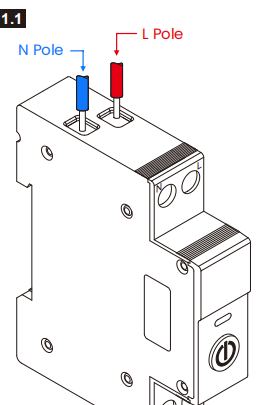
    2. Wiring the smart device correctly

    3. Prepare a 2.4Ghz Wi-Fi

    How to Connect a Tuya WiFi Smart Device?

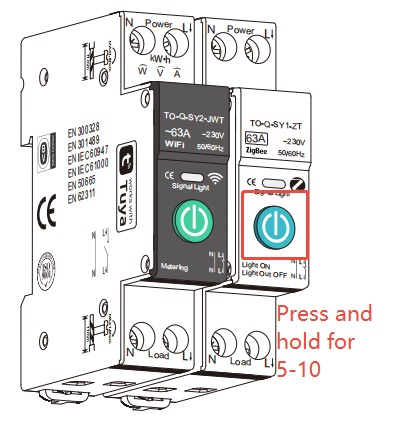
    Taking TO-Q-SY1-JWT as an example

    STEP 1-Press and hold the button for 5-10 seconds, then the indicator light will flash rapidly, indicating that the device has entered pairing mode.

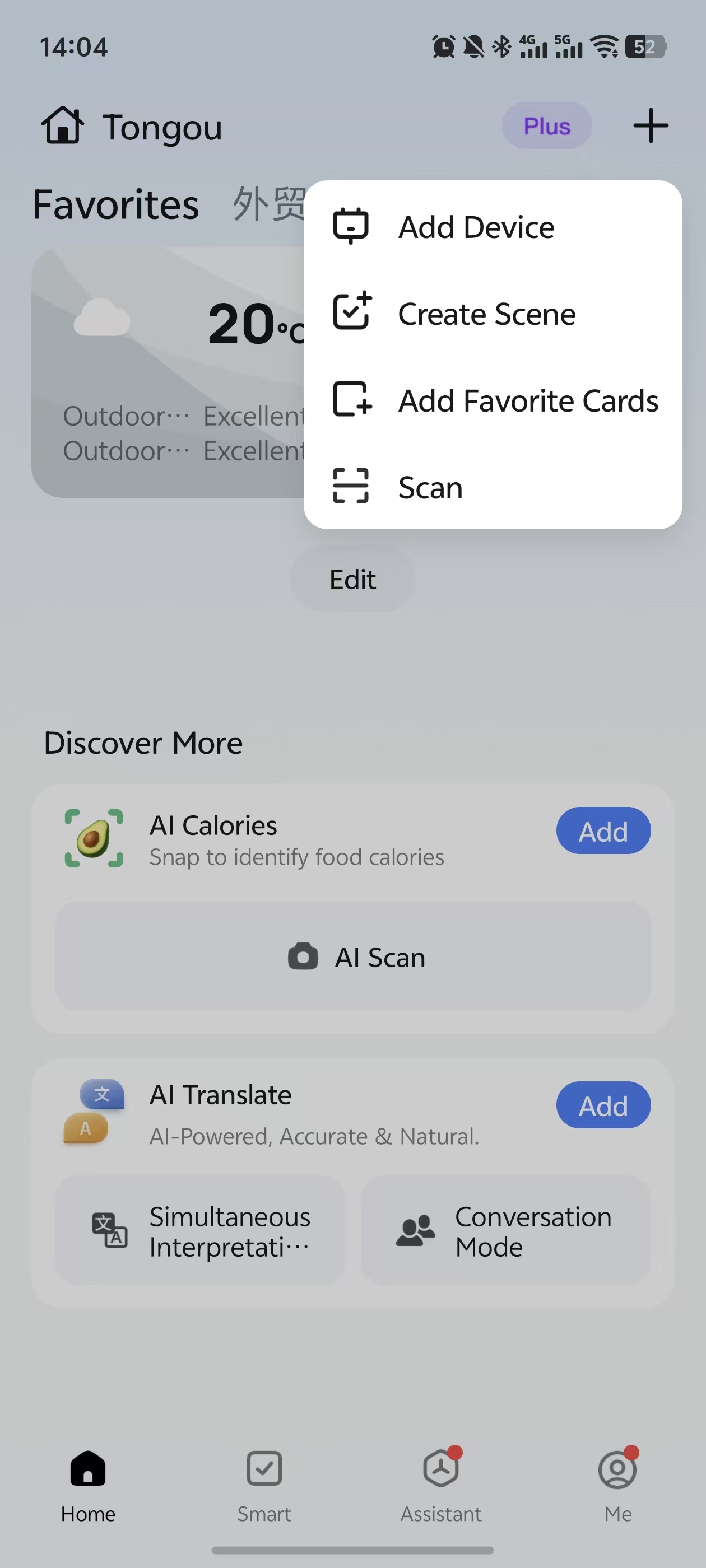
    STEP 2-Open the Tuya Smart Life app on your phone and tap “Add Device”.

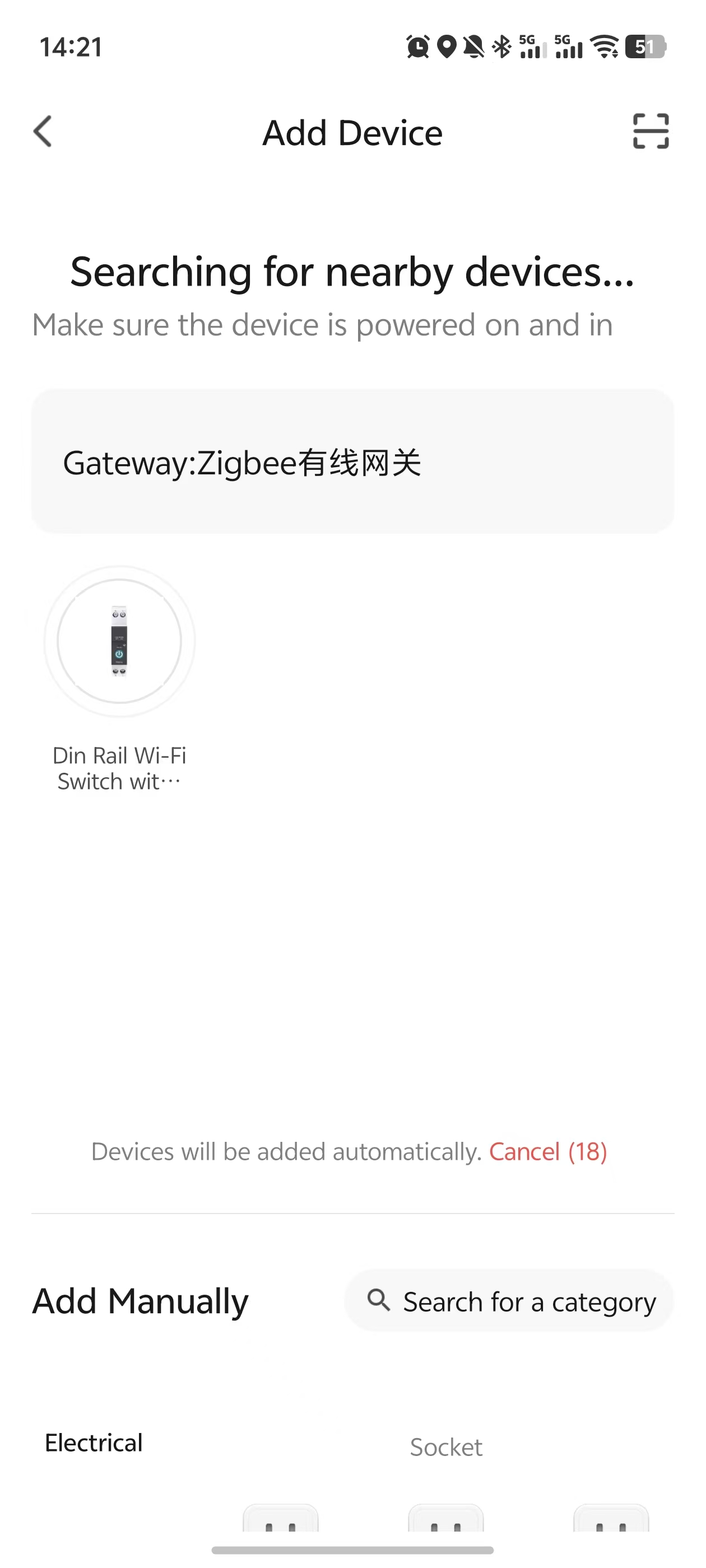
    STEP 3-Wait a few seconds, then click on the device you want to connect.

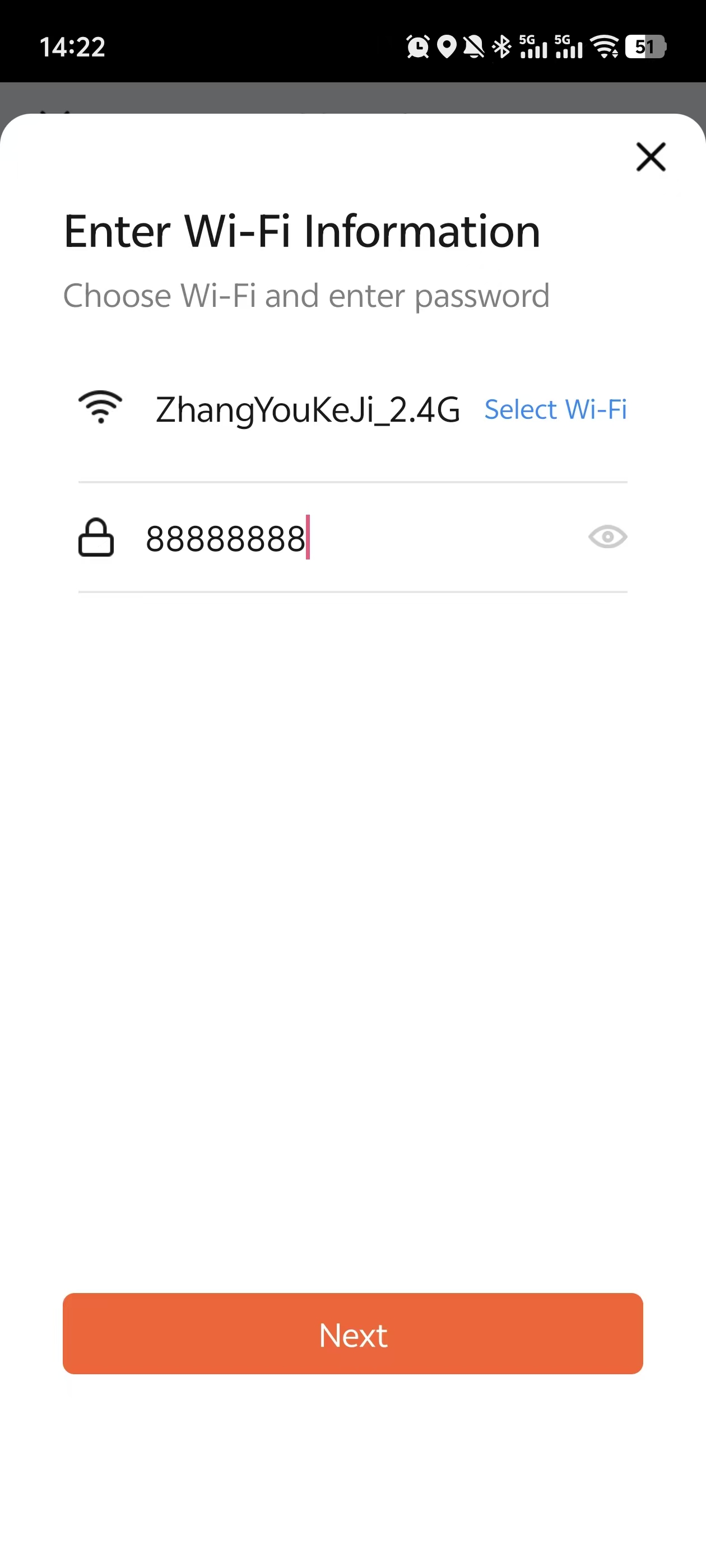
    STEP 4-Find the 2.4 GHz Wi-Fi network and enter the password.

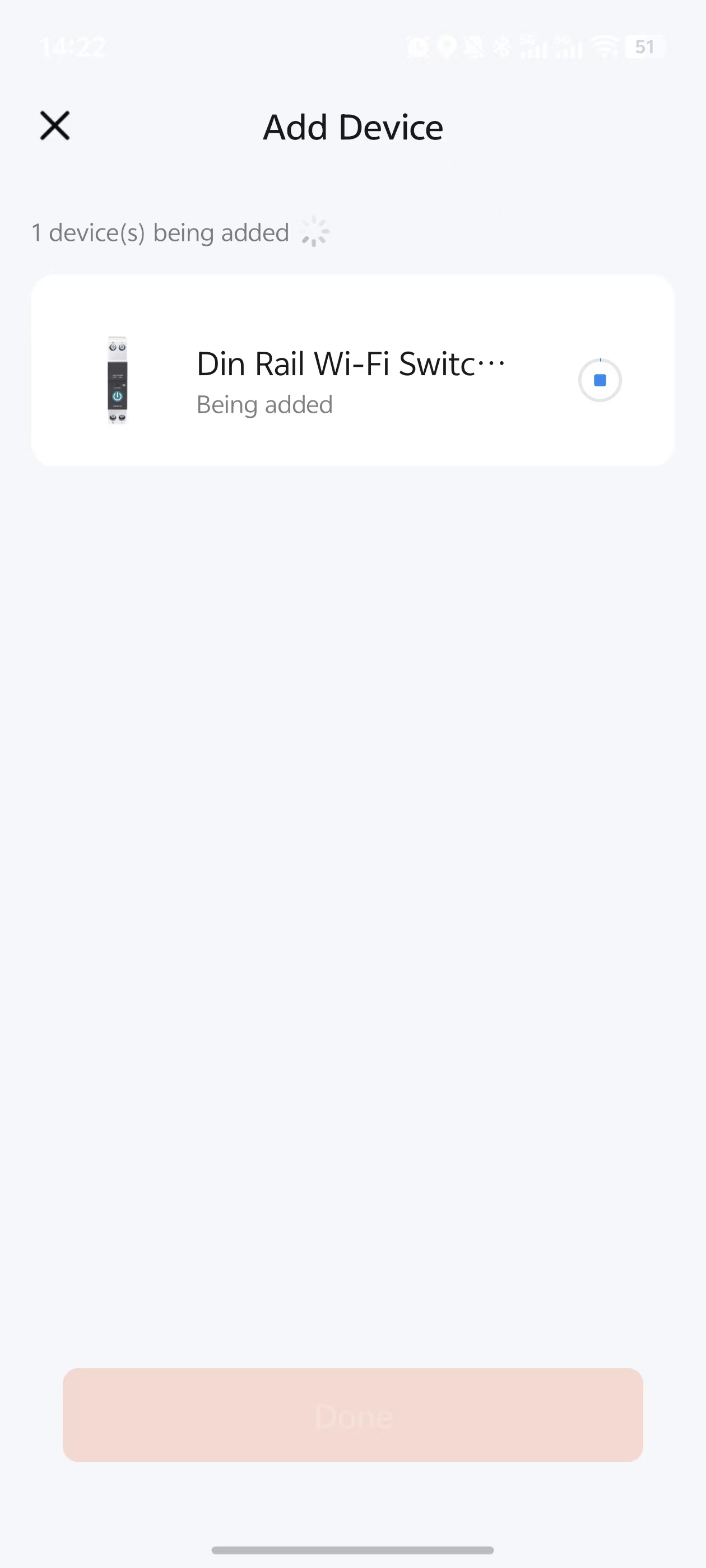
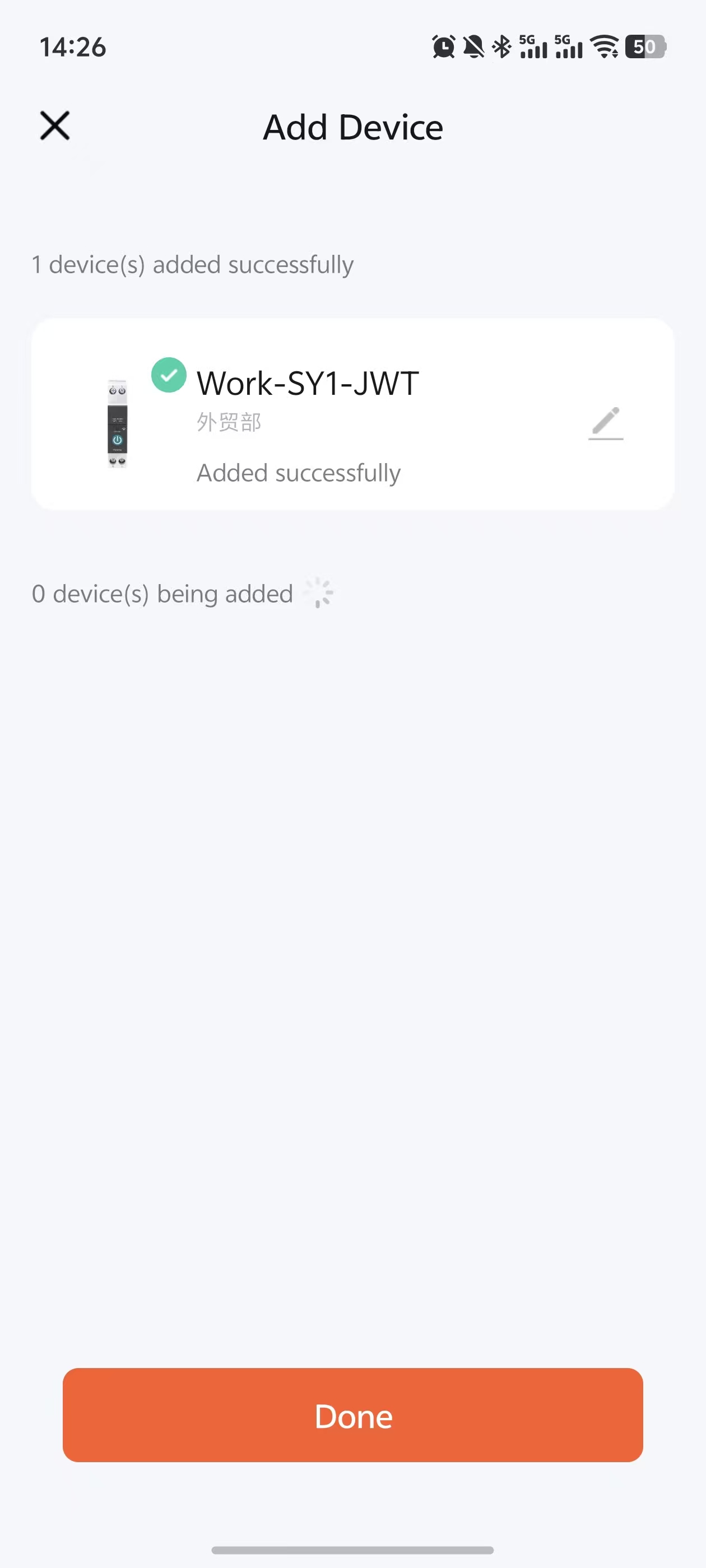
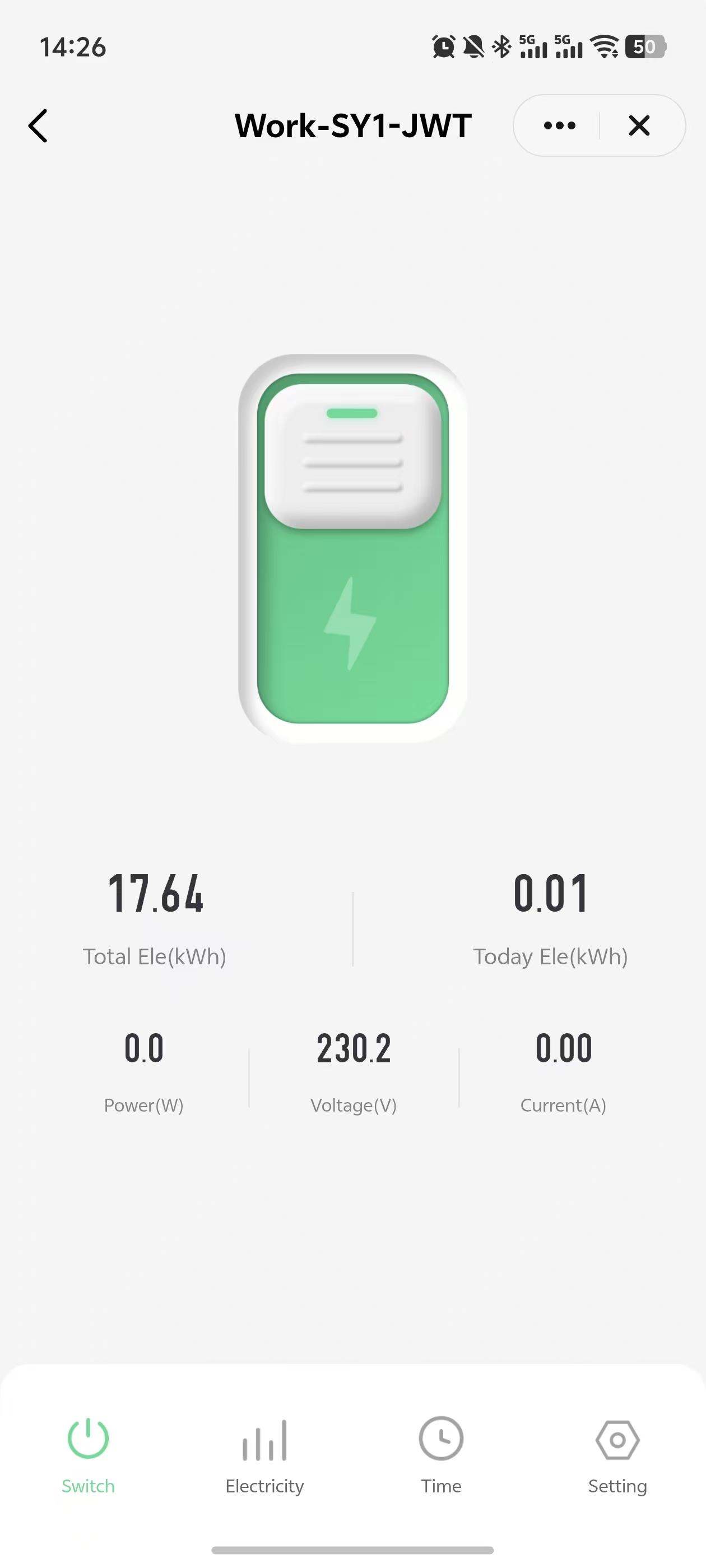
    STEP 5-7 -Wait for the connection to succeed, then use it.

    My device has a password, how do I connect?

    Why Your Tuya WiFi Smart Device May " failed to add the device"?

    failed to add the device

    If the device connection fails after following the above steps, please check the following self-test checklist:

    1. Check whether the WiFi network is 2.4GHz
    Many Tuya WiFi devices do not pair correctly on 5GHz. If your router combines 2.4GHz and 5GHz under one network name, pairing can sometimes fail or become unstable.

    2. Make sure the device is really in pairing mode
    Sometimes the most common problem is also the simplest one: the device has not actually entered pairing mode yet. Re-enter the setup menu and confirm that the pairing step was completed.

    3. Keep your phone close to the device during setup
    If the signal near the panel or installation point is weak, pairing may fail. Metal enclosures, wall structures, or the location of the distribution board can reduce WiFi strength.

    4. Double-check the WiFi password
    An incorrect password will stop the setup even if everything else looks normal.

    5. Turn Bluetooth on if the app expects it during pairing
    Your current article already tells users to turn on Bluetooth and WiFi before adding the device. If Bluetooth is off, the app may not detect the device correctly during setup.

    6. Restart the router and restart the device
    A simple restart can solve more pairing problems than people expect, especially after a failed first attempt.

    7. Try pairing again after resetting the device
    If the first pairing attempt fails, reset the device and repeat the full process from the start instead of continuing from a half-finished state.

    What If the Device Connects Once but Later Goes Offline?

    If the device pairs successfully but later goes offline, the issue is usually different from first-time pairing. In that case, check the WiFi signal strength near the installation point, restart the router, and confirm that the network settings have not changed.

    FAQ

    Do smart circuit breakers, smart switches, and smart meters use the same WiFi setup process?
    Many Tuya WiFi models use a very similar pairing flow, although the local buttons or menu paths may vary by model.

    Does Tuya WiFi setup require 2.4GHz?
    In most cases, yes. Many WiFi smart devices pair through 2.4GHz rather than 5GHz.

    Why is my smart device not showing up in Tuya Smart or Smart Life?
    Common reasons include the device not being in pairing mode, weak signal, 5GHz network use, incorrect password, or Bluetooth being turned off during setup.

    Can I use this guide for a Tongou smart switch or smart meter too?
    Yes. If the device is a Tuya WiFi model and the pairing logic is similar, this guide can help as a general reference. Tongou’s current article is written for a smart meter, but the connection flow itself is already broader than that.

    Explore Tongou Smart Circuit Breaker& Switch

      Table of Contents